
To link Google Business Profile to Google Analytics, you need to be an Administrator/Editor in GA4 and an Owner/Manager of your GBP. Once you successfully link them, you can easily monitor local customer actions, like phone calls, map direction requests, and website clicks in your main analytics reports.
If you want local customers to easily find your business online, you must know how to connect your Business Profile to Google Analytics. This also provides a simpler way to see how many people call your business, ask for directions, and visit your site from Google Search and Maps. When you understand how people find and interact with your business online, you can easily make better marketing decisions. Read to know how you can connect your GMB with Google Analytics, why it is important, what you need for linking, and more.
Why Connect Google Business Profile to GA4: Key Benefits
When you connect Google Business Profile to GA4, you can easily monitor offline customer interactions and online traffic in one dashboard. Here are the key benefits of completing this smart integration:
- Unified Performance Analytics: Google Business Profile integration helps you view local search data directly in GA4. Then you don’t have to use different apps to check business performance.
- Tracking Local Consumer Engagement: Get accurate insights into user behavior on Google Search and Maps, like clicks to your website, direct phone calls, and requests for driving directions. This helps you clearly understand the local customer intent and interest.
- Measure Your Ad Campaign Success: When you link Google Business Profile to Google Analytics, you can directly compare local advertising spend against engagement metrics, like direction clicks. So, this connection helps you understand ROI for your local ads.
- Understanding Full Customer Journeys: This smart integration will let you see how Google Business Profiles can help you track how local searchers convert into website visitors. You can map the path from local discovery to site engagement and conversion.
- Manage Multiple Branches Easily: Business Profile G4 integration allows you to collect data from multiple business locations into a single, complete report to monitor your brand’s total presence, reach, and performance.
What You Need for Google Business Profile Integration
Before knowing how to connect your business profile to Google Analytics, you must know what you need to do. You must use the same Google Account to manage both platforms and have the proper admin permissions. Here is what you need for this smart integration:
- Active GA4 Property: You need a working Google Analytics 4 property (not the older Universal Analytics).
- Verified Listing: Your local business must have a verified Google Business Profile.
- Analytics Permissions: You must have an Editor or Administrator role in your Google Analytics 4 property.
- Profile Permissions: You need Owner or Manager access to your business listing.
- Account Match: Your Business Profile GA4 setup needs both accounts to be logged into and connected through the same Google account.
How to Connect Your Business Profile to Google Analytics
Connecting your Google Business Profile to Google Analytics is a smart step that helps you track local customer interactions, like phone calls, bookings, and direction requests. Here are the steps that you need to follow to complete this smart Google Business profile integration:
- Check Your Account Permissions: To successfully complete a Google Business Profile integration, you must make sure that you have admin access to your tracking tool and owner or manager permissions for your business profile. You must make sure your access levels are correct before you start this process.
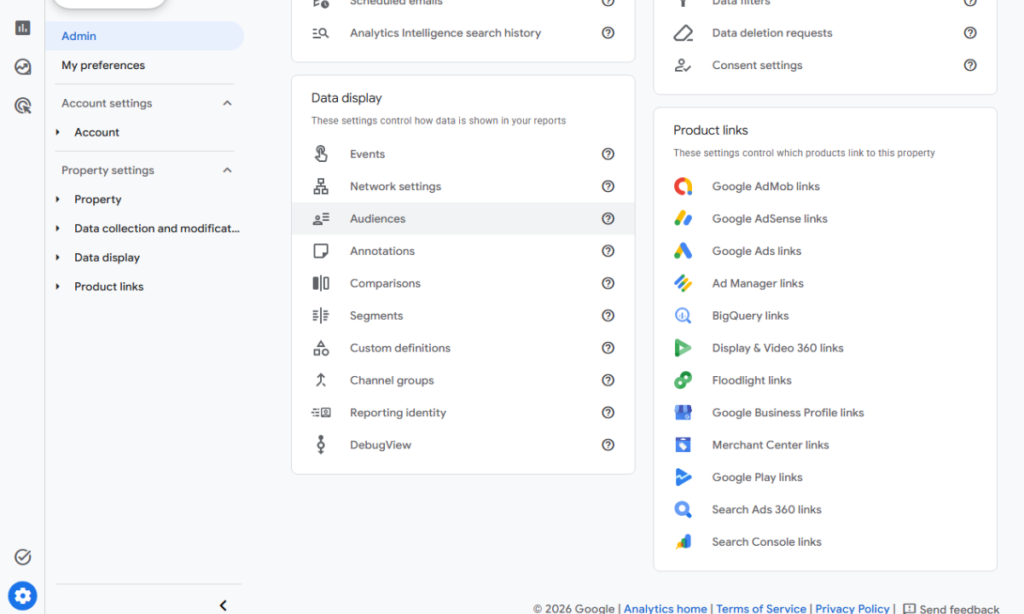
- Open the Settings Panel: Next, you have to open your Google Analytics dashboard and go to the admin area by clicking the gear icon. Then, you have to scroll down to select the Product Links section. Then click on the link Google Business Profile to Google Analytics option.
- Choose Your Business: In the linking menu, click the blue “Link” button. This will open a list of businesses you manage. Then you have to choose the correct one from the list and click confirm to proceed.
- Review and Submit the Connection: You must double-check your choices and data sharing preferences before you click “Submit”. Now your Business Profile data will move to the report section, allowing you to monitor customer interactions directly inside your Google Analytics Business Profile dashboard.
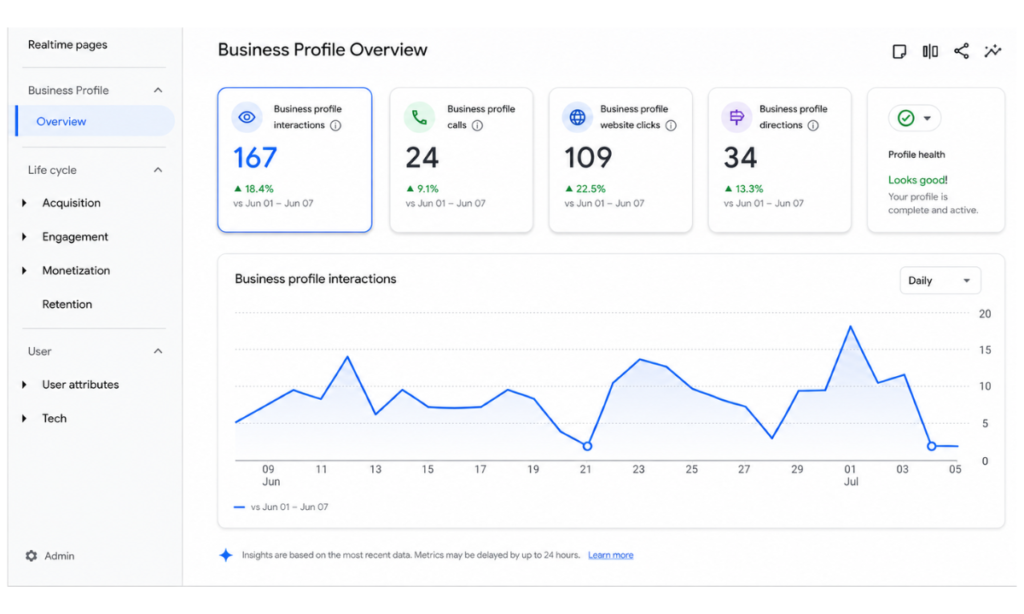
- Use the Centralized Reporting Dashboard: Wait for some time for the data to process, then you can check your Google Business Profile analytics section in your GA4 reports. You will see a new section showing up to 15 months of customer actions.
- Track Additional Actions: Once you connect Google Business Profile to GA4, you secure access to 7 new local interaction metrics. Now, you can easily see overall interactions, phone calls, direction requests, messages, menu clicks, bookings, and website visits in one dashboard. This helps you easily understand the local impact of your business.
What Are Common Errors and How to Fix Them
When you connect Google My Business Profile to GA4, you can see how people find your business. However, small technical mistakes can stop the connection from working. Common errors that can create problems are using the wrong account or not having the right permissions.
| Issue | Possible Reason | Solution |
| No Business Profiles appear | You’re signed in with the wrong Google account. | Switch to the correct account or ask the account owner to give you access. |
| “Link” button is greyed out | You don’t have the required GA4 permissions. | Ask the GA4 admin to give you Editor or Administrator access. |
| No data appears in reports | The profile is new, has low activity, or the link was added recently. | Wait 7 to 14 days and keep your Business Profile updated. |
| The Business Profile section is missing in GA4 | The link is still being processed, or the report isn’t enabled. | Enable the report in the GA4 Library or wait for it to appear. |
Business Profile GA4 Integration: Key Limitations
When you link your Google Business Profile to Google Analytics, it brings your local search data into your reports. However, you must know about limits, like you can’t break down or customize the data for specific locations.
- Aggregate Data Only: If you manage multiple business profiles, their data is merged. You can’t separate or filter the metrics to see how one location is performing.
- Limited Customization: You cannot use these specific business metrics in custom reports, comparisons, or apply filters to them.
- All or Nothing Sharing: After Google Business Profile analytics integration, you can’t choose which data points to share. Linking your profile automatically shares all available business metrics.
- Not for Subproperties: This Google Business profile integration is not supported if your Analytics setup uses subproperties.
- Link deletion: You can only disconnect the profile directly from the Google Analytics Admin settings.
- Delayed Updates: If you change your business address in your profile, it will take time to show up in your Analytics reports.
Let Web Glaze Help You with Smart Data Tracking
When you know how to connect Google Business Profile to Google Analytics, you can easily complete this integration and monitor local actions in your analytics dashboard. This is a smart way to grow your local reach. Moreover, it makes it easier to see how many people find your business, call you, or ask for directions.
Google Analytics Business Profile integration helps you get clear data to make smart choices. This provides clear data that will help you understand your local customers and turn online clicks into real sales and store visits. Hire our web-glaze expert team to help with this smart integration.
Our experts will help you handle all the steps in this setup, from connecting your profiles to showing how you can track your data. Web Glaze Services also offers trusted and customized digital marketing solutions. So, you can get special services at the best prices to improve your online presence.
Frequently Asked Questions (FAQs)
How do I connect my Google Business Profile to Google Analytics?
You need a verified Google Business Profile and a GA4 property. You must make sure you have the right permissions, then link them through the Product Links section in Google Analytics.
Why should I connect Google Business Profile to Google Analytics?
This will help you track customer actions like website visits, phone calls, and direction requests from Google Search and Maps in one place.
What permissions do I need to link Google Business Profile with GA4?
You must be an Editor or Administrator in Google Analytics 4 and an Owner or Manager of the Google Business Profile.
Why is my Google Business Profile not showing in Google Analytics?
This usually happens if you are signed in with the wrong Google account or don’t have the required permissions.
How do I delete or remove the link between Google Business Profile and Google Analytics?
You can remove the link by going to the Admin section in Google Analytics 4. Then, you have to open Product Links, select your Google Business Profile connection, and click Delete or Remove Link. This will stop your Business Profile data from appearing in GA4.

